In this next section, we are going to be working with permissions. We are going to create a new field for tasks to identify the user that has been assigned to that task. After that, we are going to create two groups, users in the first one will have access to all tasks, while users in the second one will only be able to see tasks assigned to them and won’t be able to reassign tasks or change the title of a task.
First, let’s create the new field:
- Right-click on the node
Model > Entities > Tasks > Fields, a dropdown menu will be shown, clickNew Field. - Fill in the form with:
Label: AssigneeName: assigneeType: RelationshipRelated entity: System > Users
- Click on
Create and Edit. - Set the
Default valuetoScript. - Complete the field
Scriptwithreturn sys.context.getCurrentUserRecord(); - Save the changes.
Now let’s add the two new groups:
- Click the node
Security > Groups. - Click on the
Createbutton on the top-right of the page. - Fill in the form with:
Label: ManagerName: manager
- Click on
Create and Edit. - Now we need to add permissions to access entities and views. Click on the node
Security > Groups > Manager > Entity permissions. -
Select the
Taskentity and then click onApply permissions: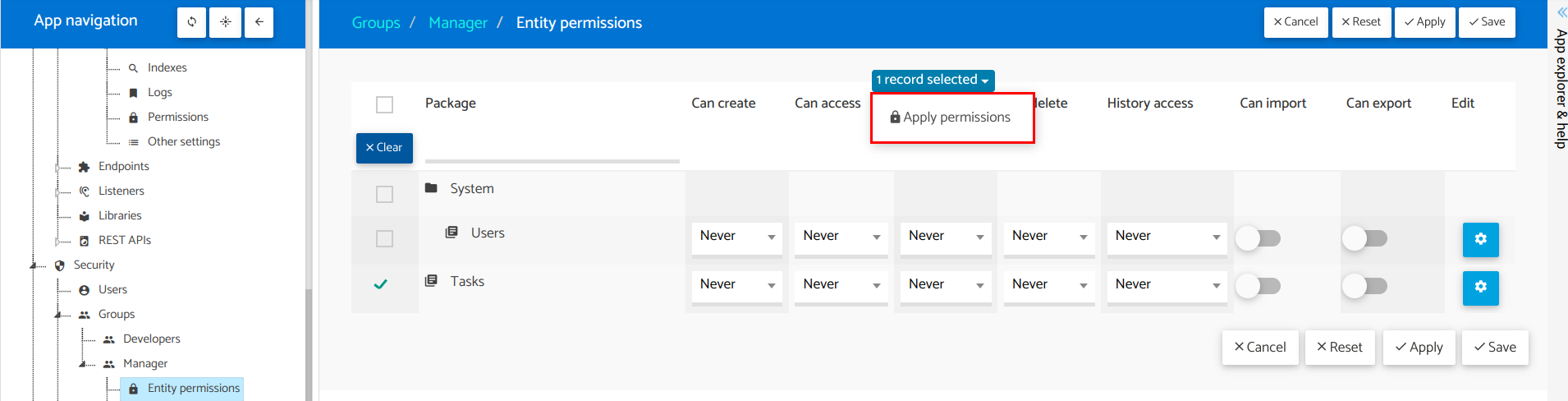
- There select the option
Read/writeand click onApply. -
Then click on the configuration button under the
Editcolumn, and configure fields permissions so fieldsStatusandRankare read-only.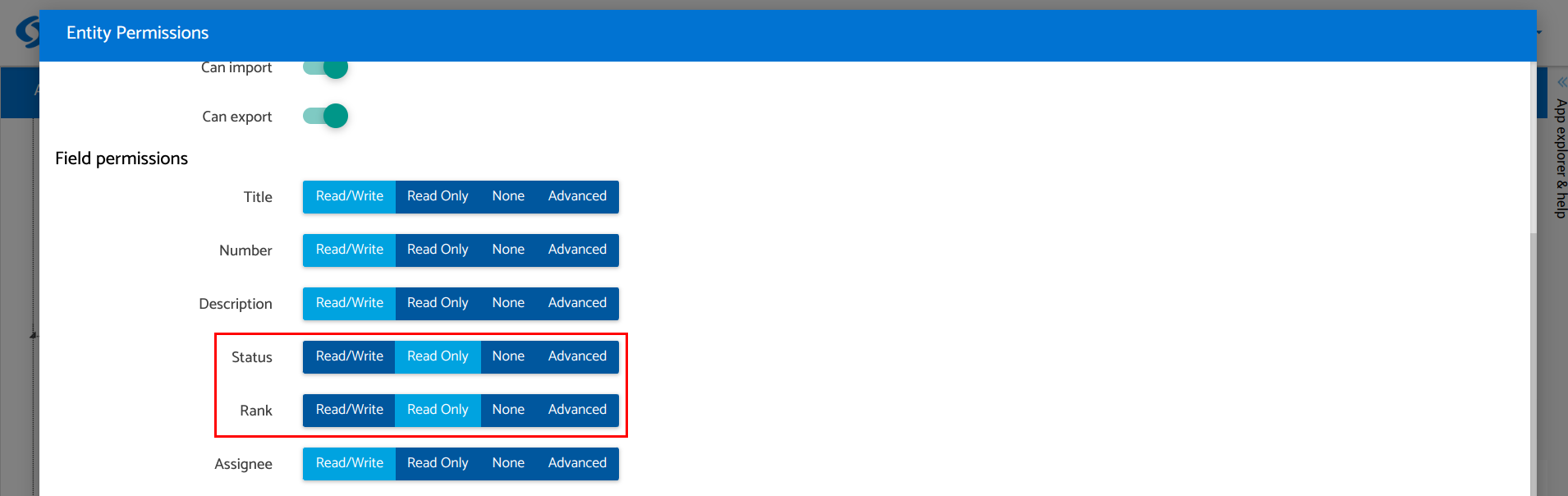 This is the correct way to enforce permissions instead of just making the field read-only in the UI.
 - Now, select the
System > Usersentity and then click onApply permissions, and this time selectRead-Only. - Finally, click the
Applybutton on the top-right of the listing to persist changes. - Click on the node
Security > Groups > Manager > View permissions. - Set the flag in the column
Permissionfor both views: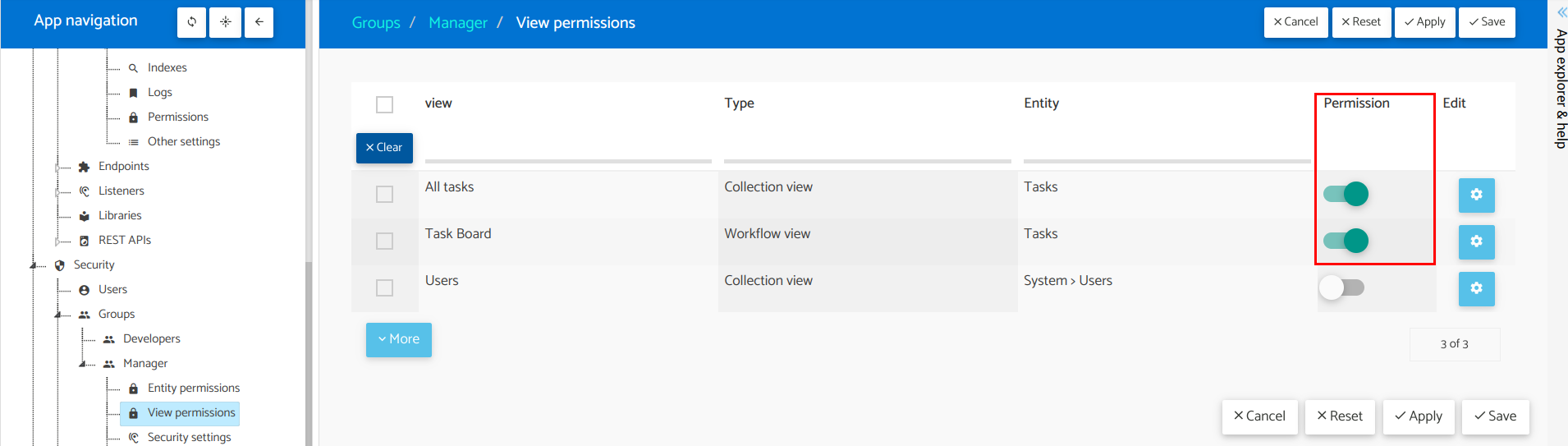
- Finally, click the
Applybutton on the top-right of the listing to persist changes.
Awesome! We have our first group, now create a new group called Support. Once you have created the Support group, let’s add some permissions to it:
- Click on the node
Security > Groups > Support > Entity permissions. - In the
Tasksentity, click on the configuration button under theEditcolumn. -
Entity permissions should be configured like this:
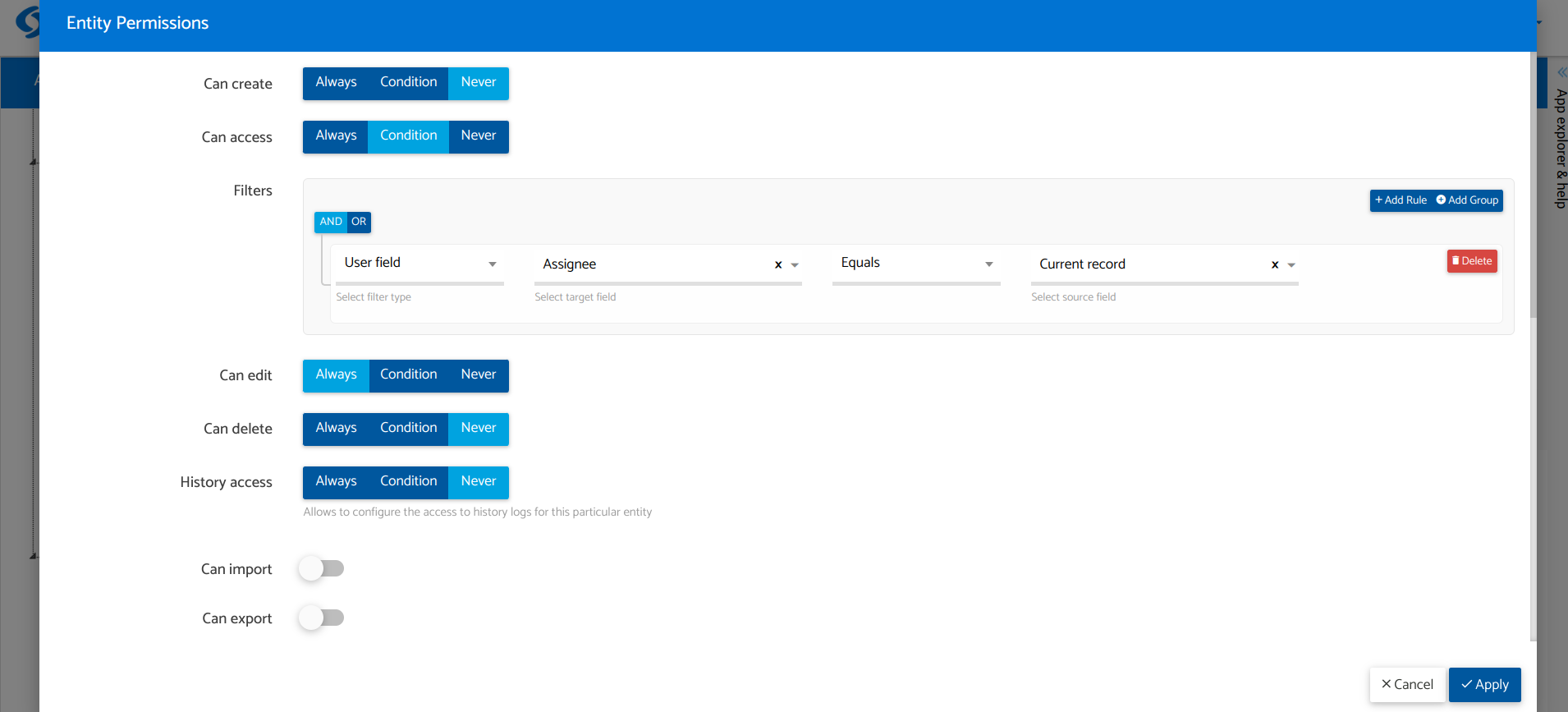
-
Field permissions should be configured like this:
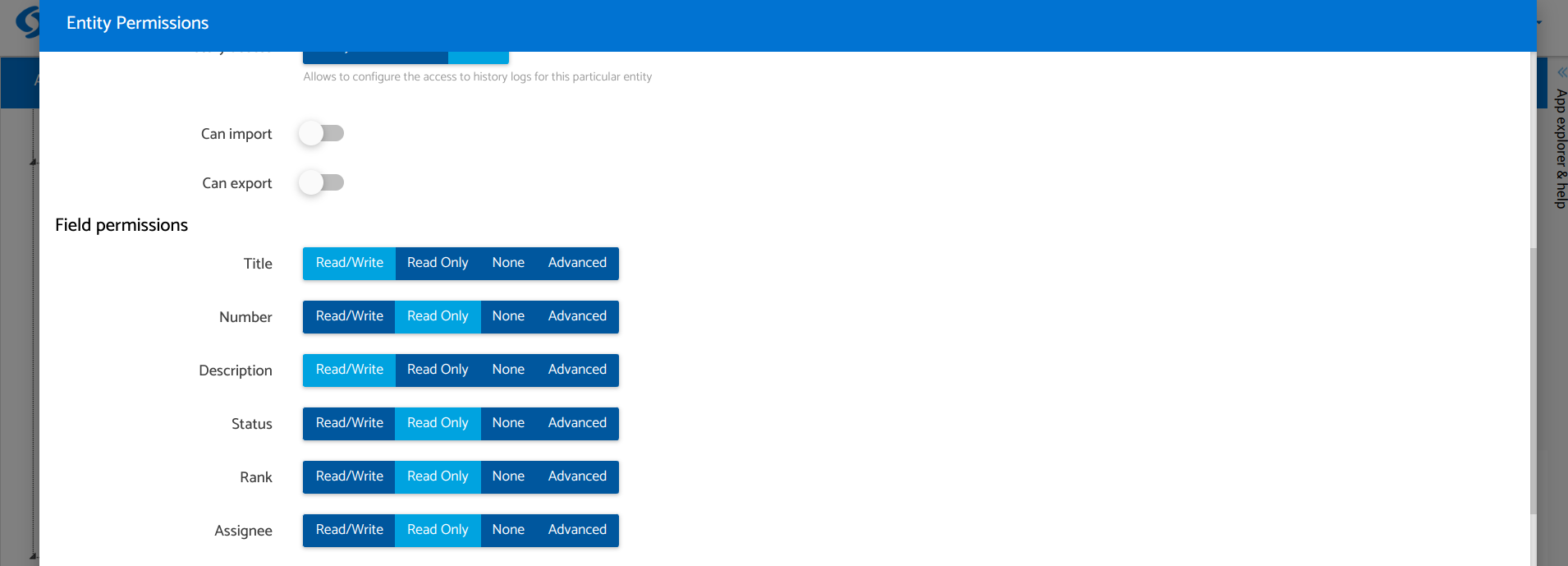
- Action permissions should be configured like this:
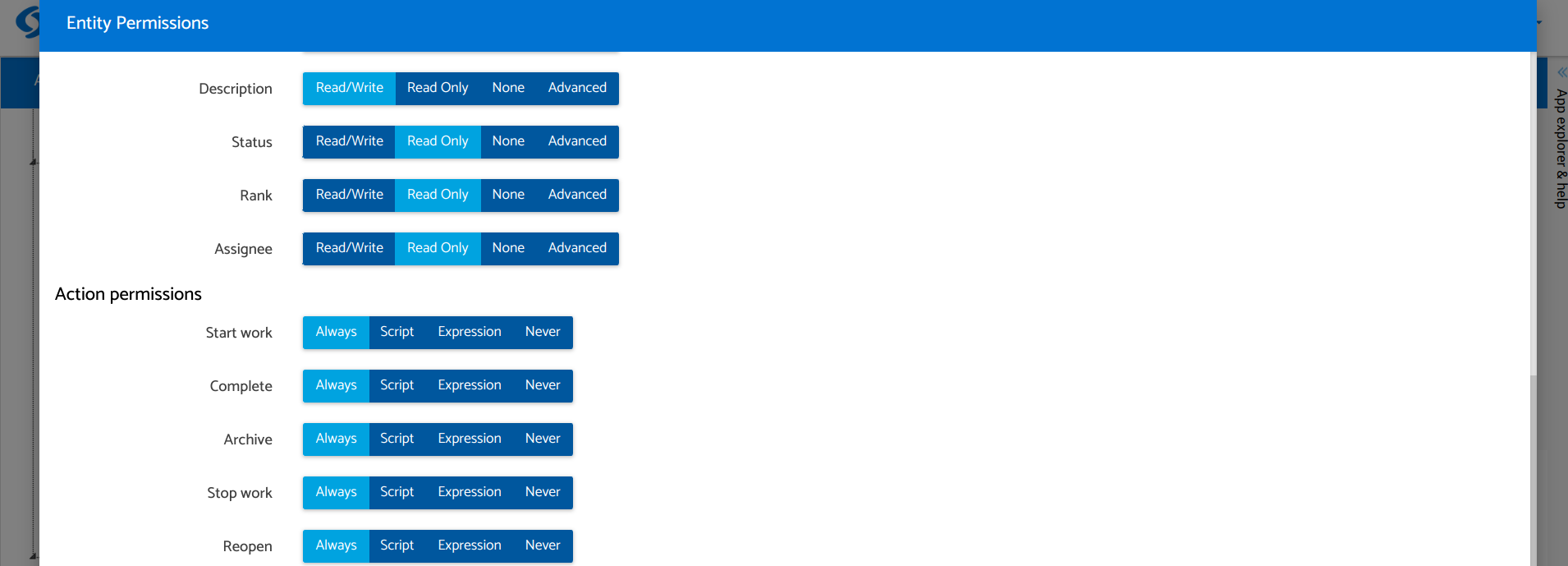
- Click on
Apply. - Now, select the
System > Usersentity, click onApply permissions, and selectRead-Only. - Save changes by clicking on
Apply. - Configure view permissions in
Security > Groups > Support > View permissionsin the same way as for managers.
Now that we have created the groups and we have defined their permissions have been, let’s push the changes so we can use these groups when creating users. It’s time to create a few users (make sure you pushed changes before):
- Click on the node
Security > Users. - Click on the
Createbutton on the top-right of the page. - Fill in the form with:
First name: Manager1Last name: TestEmail: manager1@test.comGenerate Password: trueGroups: add the Manager group as Primary
- Click on
Createto save the user.
Then repeat the same process for these users:
| First name | Last name | Primary group | |
|---|---|---|---|
| Support1 | Test | support1@test.com | Support |
| Support2 | Test | support2@test.com | Support |
Awesome! We have finished this section and almost our app. In the next section, we are going to learn how to work with different users on the runtime. Next section: Testing users and permissions.